

LinkedIn Post Formatting
LinkedIn supports bold, italic, and bullet point formatting in posts — but not through Markdown or HTML. Formatting relies on Unicode character substitution: special characters that look bold or italic but are technically different Unicode code points. Lunatic AI includes a formatting toolbar in the post editor and offers a free standalone LinkedIn Post Formatter tool that anyone can use.
- LinkedIn doesn't support Markdown or HTML in posts
- Bold text uses Unicode "Mathematical Sans-Serif Bold" characters (𝗟𝗶𝗸𝗲 𝘁𝗵𝗶𝘀)
- Italic text uses Unicode "Mathematical Sans-Serif Italic" characters
- Bullet points use the • character, numbered lists use 1. 2. 3.
- Lunatic AI's editor has a formatting toolbar, plus a free formatter tool
What formatting does LinkedIn support?
LinkedIn posts are plain text with no native rich text support. No Markdown rendering, no HTML tags, no font size options, no heading levels. What you type is what appears.
But there's a workaround. Unicode includes character sets originally designed for mathematical notation — "Mathematical Sans-Serif Bold" and "Mathematical Sans-Serif Italic" — that look like bold and italic versions of regular Latin characters. When you paste these characters into a LinkedIn post, they display as formatted text.
Here's what works:
- Bold — Unicode mathematical bold characters (𝗟𝗶𝗸𝗲 𝘁𝗵𝗶𝘀)
- Italic — Unicode mathematical italic characters
- Bullet points — the • character followed by a space
- Numbered lists — 1. 2. 3. with line breaks between items
- Line breaks — preserved exactly as entered
And what doesn't:
- Underline (no reliable Unicode workaround)
- Strikethrough (Unicode options exist but render inconsistently across devices)
- Headings or font sizes
- Links with custom display text (URLs are auto-linked but always show the full URL)
- Colored text
How do I format posts in Lunatic AI?
The post editor includes a formatting toolbar with bold, italic, and list buttons. Select the text you want to format, click the button, and the characters are converted to their Unicode equivalents.
The LinkedIn preview panel on the right shows exactly how the formatted post will look on LinkedIn — including the "See more" fold, line spacing, and character rendering. When you're ready to post, copy from the preview panel to preserve all formatting.
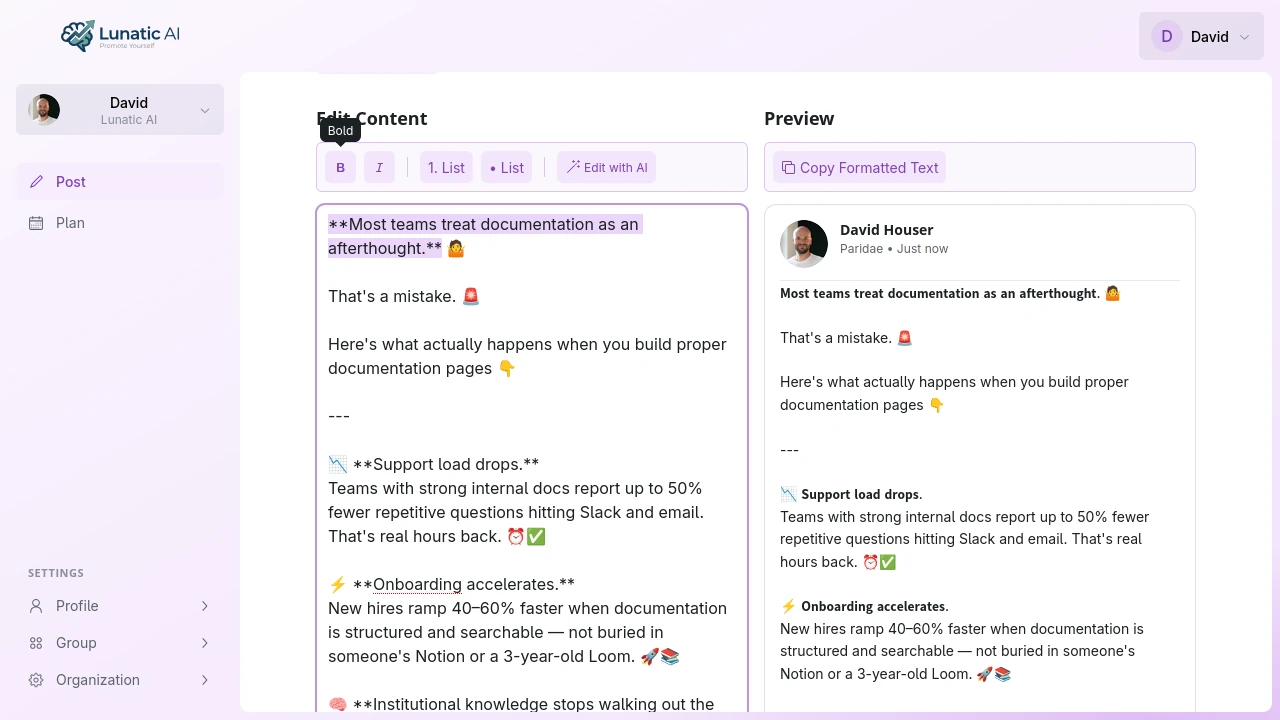 LinkedIn post formatting toolbar with bold, italic, and list buttons
How does bold text work on LinkedIn?
There's no "bold" button on LinkedIn itself. Formatting tools (including Lunatic AI's editor) replace regular characters with their Unicode "Mathematical Sans-Serif Bold" equivalents. The letter "a" becomes "𝗮", "B" becomes "𝗕", and so on.
The result looks bold to readers, but technically each character is a different Unicode code point than its regular counterpart.
Best practices for bold on LinkedIn:
- Use bold for key phrases, names, or section headers within a post
- Don't bold entire paragraphs — it loses its emphasis and becomes harder to read
- Limit bold to 2–3 phrases per post for maximum impact
- Be aware that screen readers may not interpret Unicode bold characters correctly (see accessibility note below)
How does italic text work on LinkedIn?
Same mechanism, different character set. Regular characters are replaced with Unicode "Mathematical Sans-Serif Italic" characters.
Italic works well for:
- Emphasis on a single word or short phrase
- Book or article titles
- Foreign words or technical terms on first use
- Rhetorical questions or internal monologue within a story
Like bold, it's most effective when used sparingly. A post where every other sentence is italicized reads as cluttered, not emphatic.
How do I add bullet points?
Type the • (bullet) character followed by a space at the start of each line. Most keyboards don't have a dedicated bullet key, which is where formatting tools help — Lunatic AI's toolbar inserts the character automatically.
For numbered lists, use 1. 2. 3. with a line break between each item. Indented sub-items with spaces technically work but render inconsistently across desktop and mobile LinkedIn apps, so stick to flat lists.
Structure tips:
- Keep bullet points to 3–7 items. Longer lists lose the scanning advantage.
- Each bullet should be roughly the same length for visual rhythm.
- Start each bullet with an action verb or key term for easy scanning.
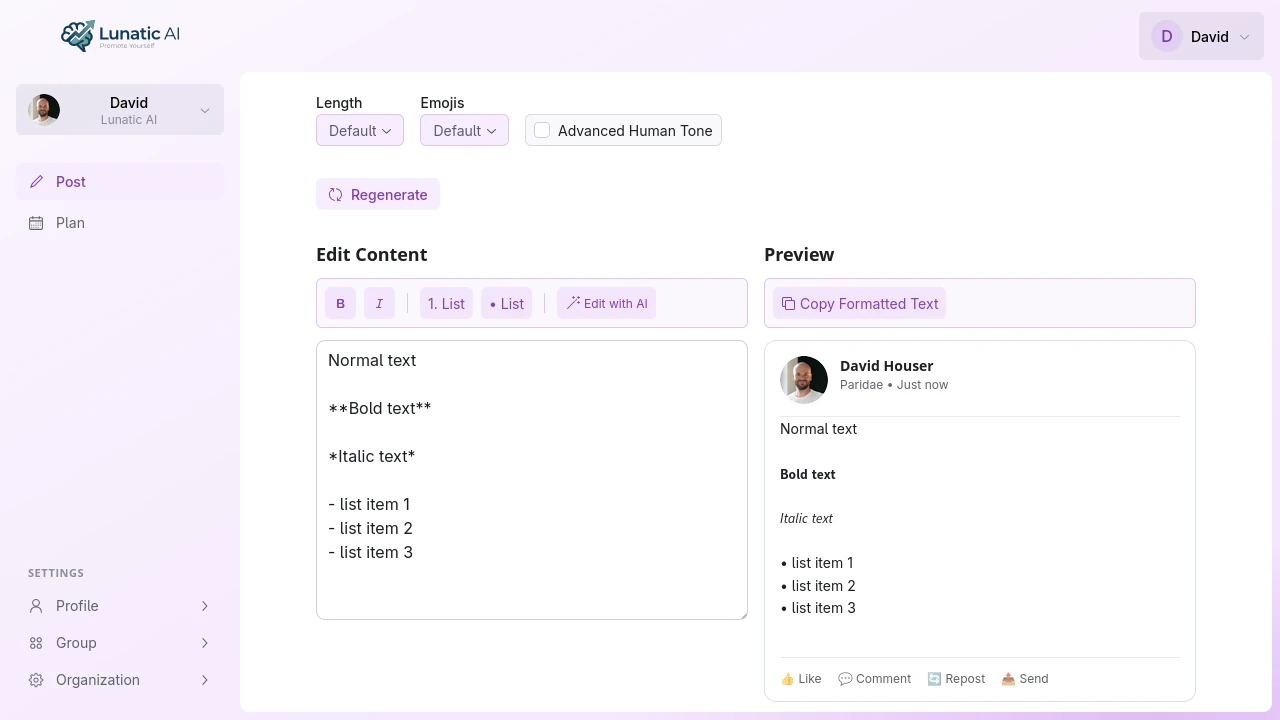 LinkedIn preview showing bold and italic formatted text
What about line breaks and whitespace?
LinkedIn preserves line breaks in posts. A blank line between paragraphs creates visible spacing. This is the most powerful formatting tool you have — more than bold or italic, strategic whitespace determines whether someone reads your post or scrolls past it.
Key details:
- The first ~210 characters appear before the "See more" fold on desktop. On mobile, it's closer to 140. Your opening hook needs to land before the fold.
- Single line breaks create tight spacing. Double line breaks (blank line between paragraphs) create paragraph-level spacing.
- Leading whitespace (spaces at the start of a line) is preserved but can look odd on mobile.
- LinkedIn occasionally trims excessive consecutive blank lines, but 1–2 blank lines between sections are reliable.
Free LinkedIn Post Formatter tool
Don't use Lunatic AI for content generation yet? You can still format your LinkedIn posts with the free LinkedIn Post Formatter. No signup, no account required. Paste your text, apply bold, italic, or bullet formatting, and copy the result.
The tool converts standard text to Unicode-formatted text that LinkedIn renders as bold or italic. It also provides a live preview so you can see exactly how the post will look before copying it.
Unicode bold and italic characters are not reliably read by screen readers. Some screen readers skip them entirely, others read them as individual characters, and others pronounce them as "mathematical sans-serif bold capital A." Use formatting to enhance readability for sighted users, but don't rely on it to convey essential meaning.
For a comprehensive reference covering every LinkedIn formatting option in depth — including character limits, hook strategies, and mobile vs desktop rendering differences — see the LinkedIn Text Formatting guide.
Or start creating AI-generated posts
Voice-matched LinkedIn content with built-in formatting. Free plan available.
Start Creating Posts