

Voice Profile
A voice profile is an AI-generated description of your personal writing style. Lunatic AI uses it every time it drafts a LinkedIn post, so the output reads like something you'd actually write — your sentence patterns, your word choices, your rhythm.
- AI-generated text that captures how you write (tone, structure, vocabulary)
- The language you want to write your posts in
- Built from the onboarding questionnaire, LinkedIn data, or both
- Editable at any time from the Voice tab on your profile
- Every change is tracked as a version — you can view or restore any previous version
- Regenerate after syncing LinkedIn data or retaking the questionnaire
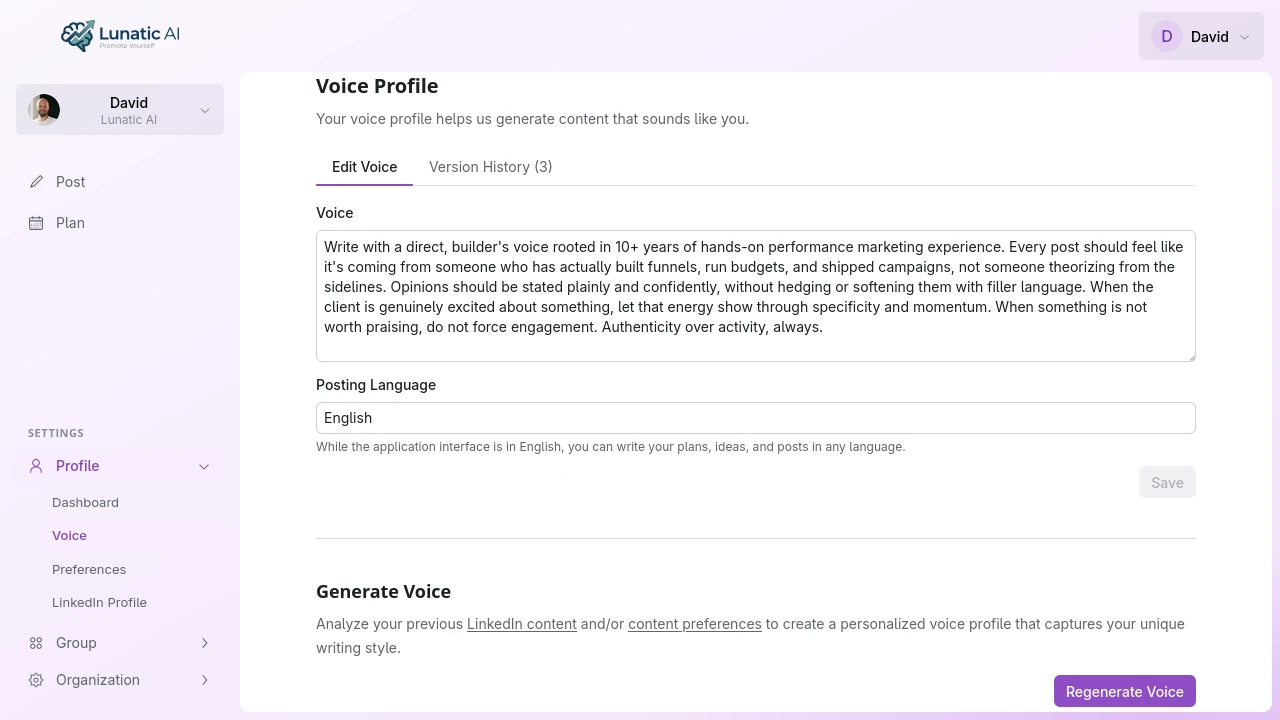 Voice profile editor showing generated voice text
How is a voice profile generated?
Two inputs feed the voice profile, and you can use either one or both:
- Onboarding questionnaire — 5 questions about your tone, length preference, perspective, avoidances, and background. Takes about 2 minutes. This alone is enough for a usable voice profile.
- LinkedIn profile sync — connect your LinkedIn URL and the AI analyzes your headline, about section, and past posts. This captures patterns from your real writing instead of just your stated preferences.
Using both together produces the best results. The questionnaire tells the AI what you want to sound like. Your LinkedIn data shows how you actually write. The combination gives the AI a complete picture.
Read more: Onboarding Questionnaire
How do I edit my voice profile?
Open the Voice tab on your profile page. The voice profile is plain text in an editor — you can rewrite sections, add details, remove things that don't fit. When you're done, click Save Changes.
Saving creates a new version (labeled "User Edit" in your history), so the previous version is preserved. You're not overwriting anything.
A language selector sits below the editor. Changing the posting language affects the language of all generated posts for this profile.
What is voice version history?
Every change to your voice creates a version. You'll find the full history in the Version History tab next to the editor.
The timeline shows each version with a label:
- Initial — your first generated voice
- User Edit — a manual save you made
- Regenerate — a full re-generation from your latest data
- Restored — a previous version you chose to bring back
You can click any version to load it into the editor and see what it looked like. This doesn't save anything — you're just browsing. From there you can either click Restore this version to make it current, or Back to current to return to the latest version.
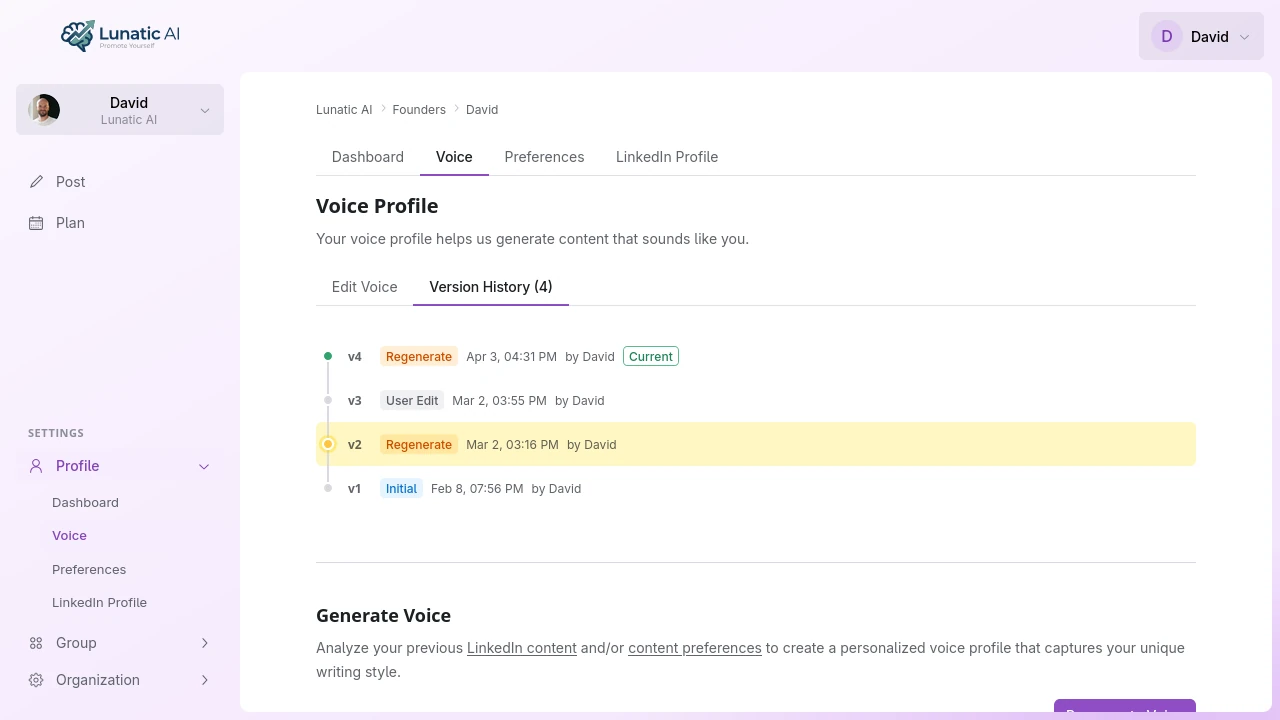 Voice version history with branching timeline
When should I regenerate my voice?
Regeneration builds a fresh voice profile from your current data. A few situations where it makes sense:
- After syncing new LinkedIn data. If you've posted on LinkedIn since your last voice generation, syncing will pull in those posts. An orange notification appears on the Voice tab reminding you to regenerate.
- After retaking the questionnaire. If your preferences have changed — different tone, new avoidances, updated background — retake the questionnaire from the Preferences tab, then regenerate.
- After a career change. New role, new company, new expertise. Your old voice profile might not reflect how you want to write now.
Regeneration creates a new version. Your old voice profile stays in the history. You can always restore an old version if you liked the posts it created better.
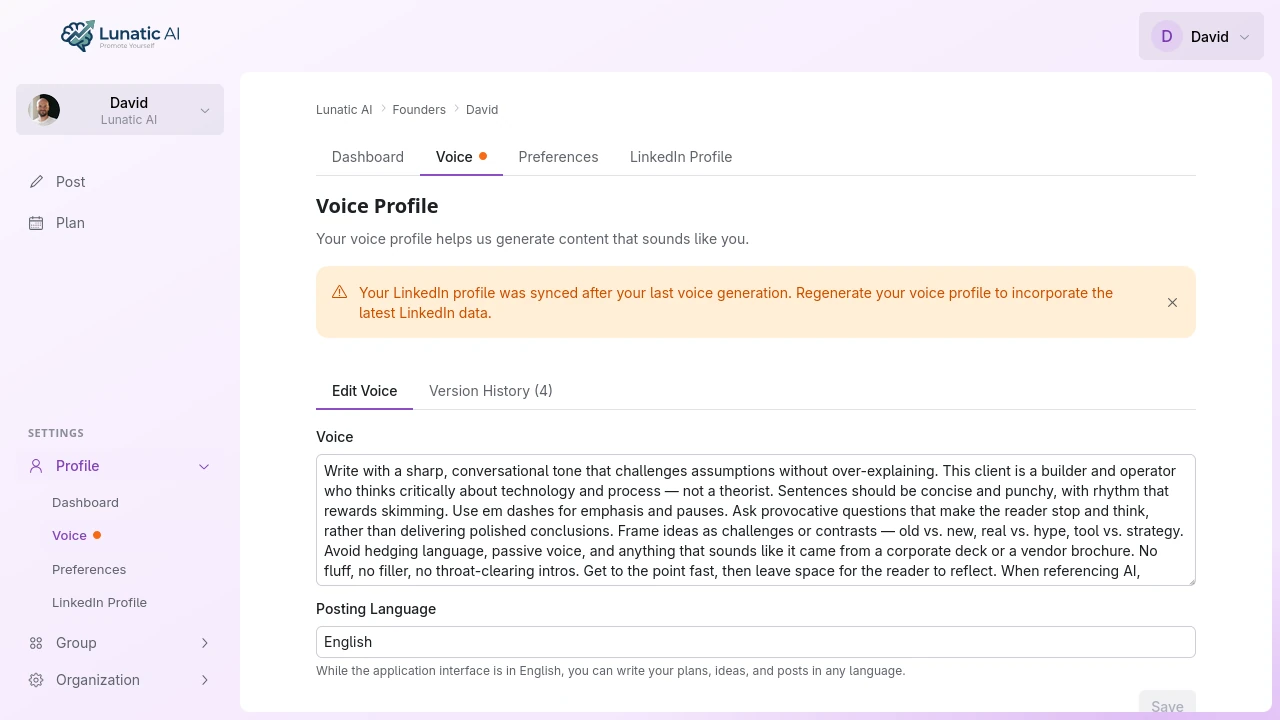 Voice regeneration notification after LinkedIn sync
Syncing your LinkedIn profile after generating your voice triggers an orange notification reminding you to regenerate for best results.
What about posting language?
The language selector on the Voice tab sets the language for all generated content — posts, content plans, and AI edits. Changing it doesn't regenerate your voice profile, but it does change the language the AI writes in going forward.
Your voice profile itself can be in any language. If you generate it from English LinkedIn posts, it'll be in English. The posting language setting is separate — you could have an English voice profile but generate posts in German.
Build your voice profile in 2 minutes
Start with the questionnaire. Add LinkedIn data later if you want.
Start Now