

Content Calendar
The content calendar is where you plan and schedule LinkedIn content visually. Select a date range, set your goals and audience, add a note about the content you want to plan, and the AI generates a batch of ideas placed across the calendar. From there you can rearrange ideas, open them in an editor, and convert them into full posts — all from one view.
- Visual calendar for planning LinkedIn content across dates
- AI generates ideas based on your goals, audience, notes and voice profile
- Drag and drop to reschedule ideas
- Click any idea to edit it or generate a full post
- Available on Pro plans and above
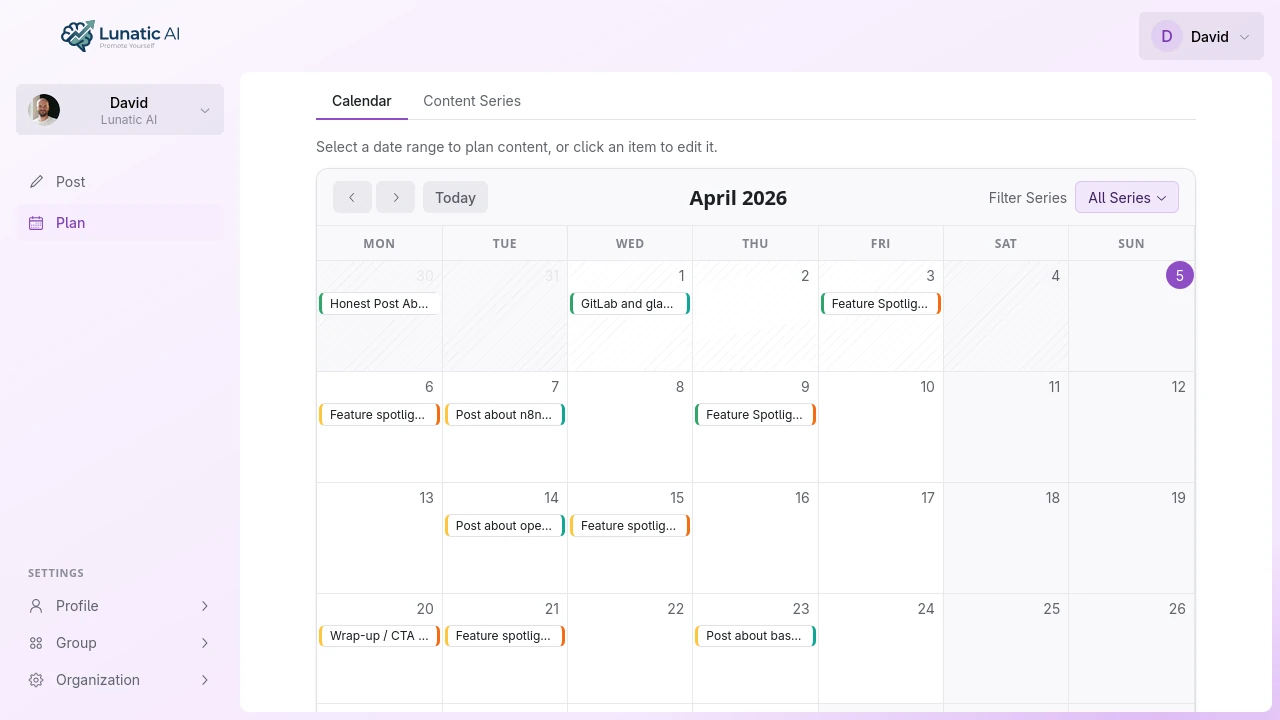 Content calendar showing planned ideas across multiple dates
How do I generate a content plan?
Click a date or drag across a range
On the calendar, click a single date to plan for that day. Or click and drag across multiple dates to plan a full range — a week, two weeks, whatever you need.
Set your goals and audience
The planning dialog opens. Select one or more goals (what you want the content to achieve) and one or more target audiences (who you're writing for). These selections influence the ideas the AI generates.
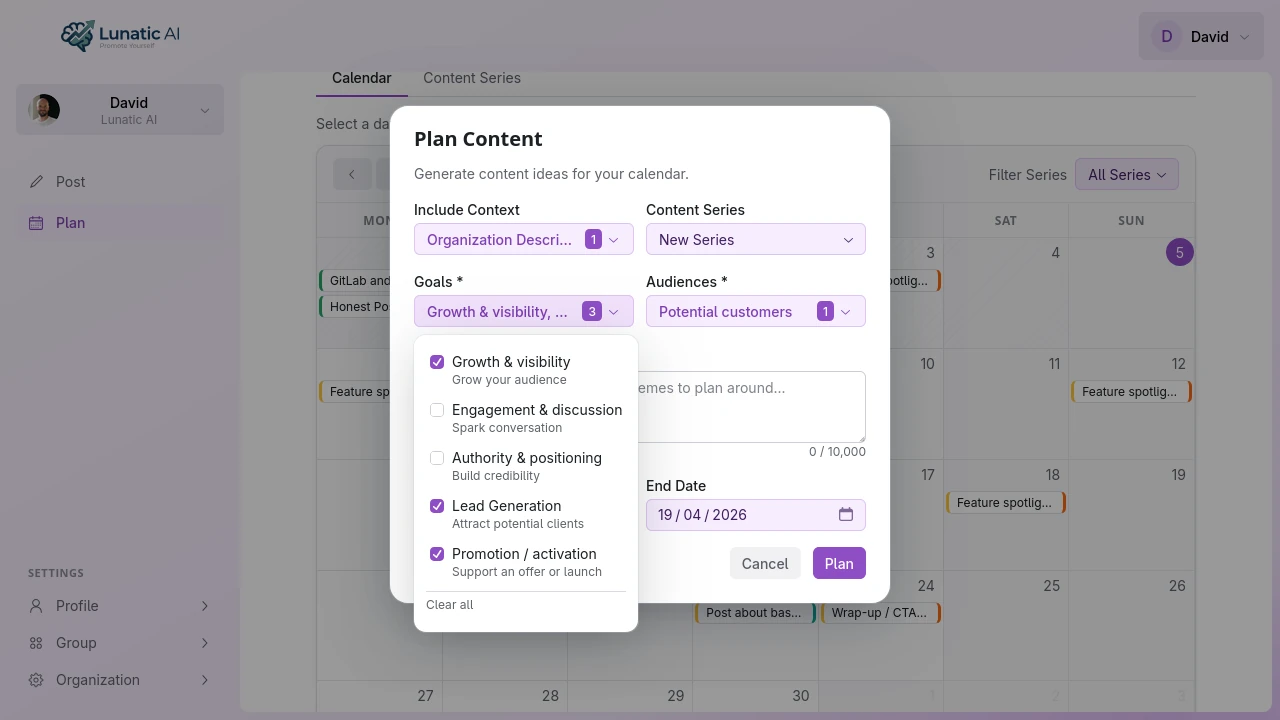 Content planning dialog with goals and audience selection
Choose a content series (optional)
If you've created content series, you can assign the plan to one. The AI receives the series name, description, and recent posts as context, so new ideas build on what you've already covered.
Add notes (optional)
The notes field lets you steer the AI toward specific topics, angles, or themes. Something like "focus on remote work challenges" or "tie everything back to our product launch next month" gives the AI a direction beyond the goals and audience.
Generate
Click Generate. The dialog closes and the calendar highlights the selected date range with a pulsing indicator while the AI works. Within a few seconds, ideas appear on the calendar as colored dots — one per date, each with a topic and an optional guiding question.
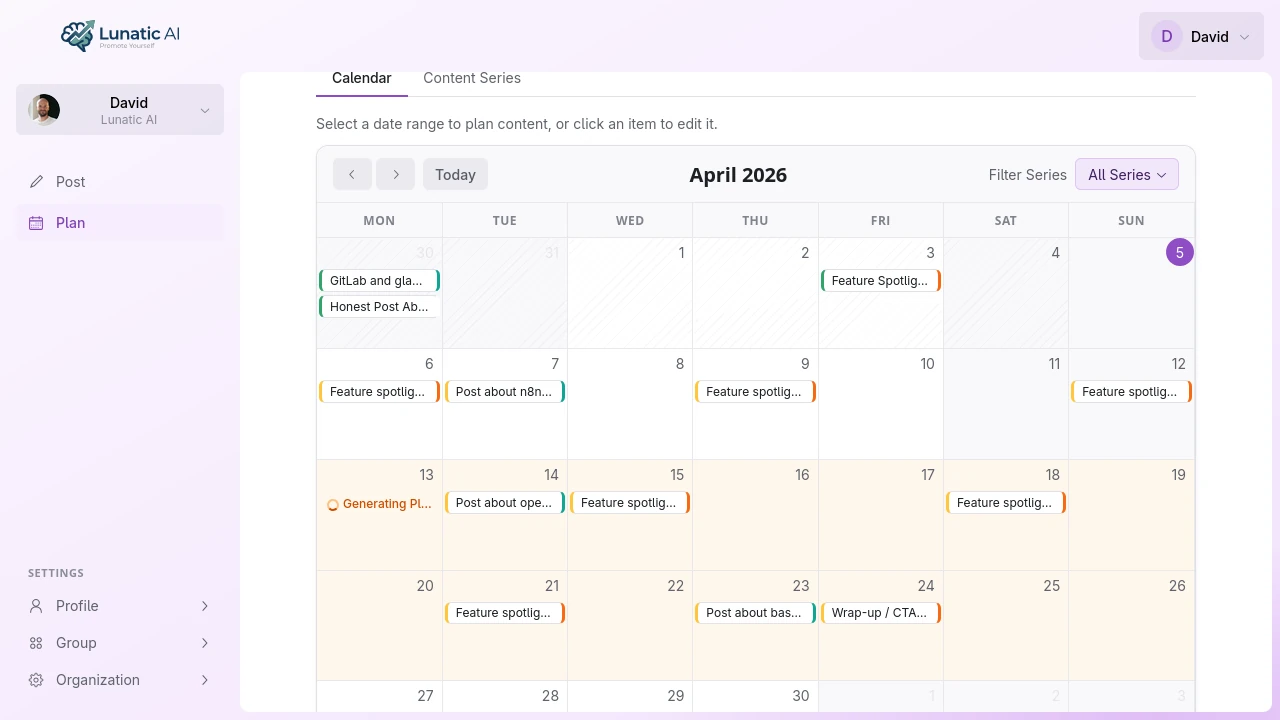 Calendar generating content plan with pulsing highlight
How do I work with ideas on the calendar?
Ideas show up as color-coded cards on each date. The color matches the content series they belong to (or a default color if they're unassigned).
Click any idea to open it in a modal editor. The editor shows the idea text, the guiding question (if one was generated), and a text area for your answer. You can edit the idea, answer the question, adjust generation settings, or generate a full post right from here.
To reschedule, drag an idea from one date to another. The planned date updates immediately.
How do I convert an idea into a post?
Open the idea from the calendar. If it has a guiding question, answer it — even a sentence or two helps. The question is designed to pull in your personal experience or perspective, which makes the generated post sound like you rather than a generic take on the topic.
Click Generate Post. The AI uses your voice profile, the idea text, your answer, and any generation settings (length preference, emojis, included context) to produce a full draft. Once done, the post opens in the editor with a live LinkedIn preview, and you can refine it from there.
Using the calendar on mobile devices?
The calendar works on touch devices with slightly different gestures:
- Single date — tap a date normally
- Date range — long-press then drag across dates
- Reschedule — long-press an idea, then drag it to a new date
- Open an idea — tap the idea card
A hint label below the calendar reminds you of the long-press gesture on touch screens.
Content planning requires a Pro subscription or above. Free tier users can still create individual posts from the Posts page without the calendar.
Setting goals and audiences for each plan helps the AI tailor ideas to your specific objectives. Generating a batch of "Lead Generation" content for "Decision-makers" produces very different ideas than "Engagement" content for "Professional peers."
Unlock the content calendar
Pro plans start at EUR 25/month. Plan weeks of content in minutes.
See Plans