

AI Editing
AI editing lets you rewrite a generated post using natural language instructions. Tell the AI what to change — tone, length, structure, focus — and it rewrites the content while preserving your voice profile. Every edit is tracked in version history, and the AI may detect reusable style preferences from your instructions.
- Rewrite posts with plain-language instructions like "make this shorter" or "add a question hook"
- The AI preserves your voice profile during rewrites
- Each edit creates a new version entry with the prompt stored
- The system may detect and offer to save reusable style preferences
- Different from regeneration, which starts fresh from the original idea
How do I edit a post with AI?
Open a completed post
Navigate to a post that has already been generated. AI editing works on posts with content — not on ideas that haven't been generated yet.
Click "Edit with AI"
The edit button opens a prompt popover directly in the editor. You'll see a text input where you type your instruction.
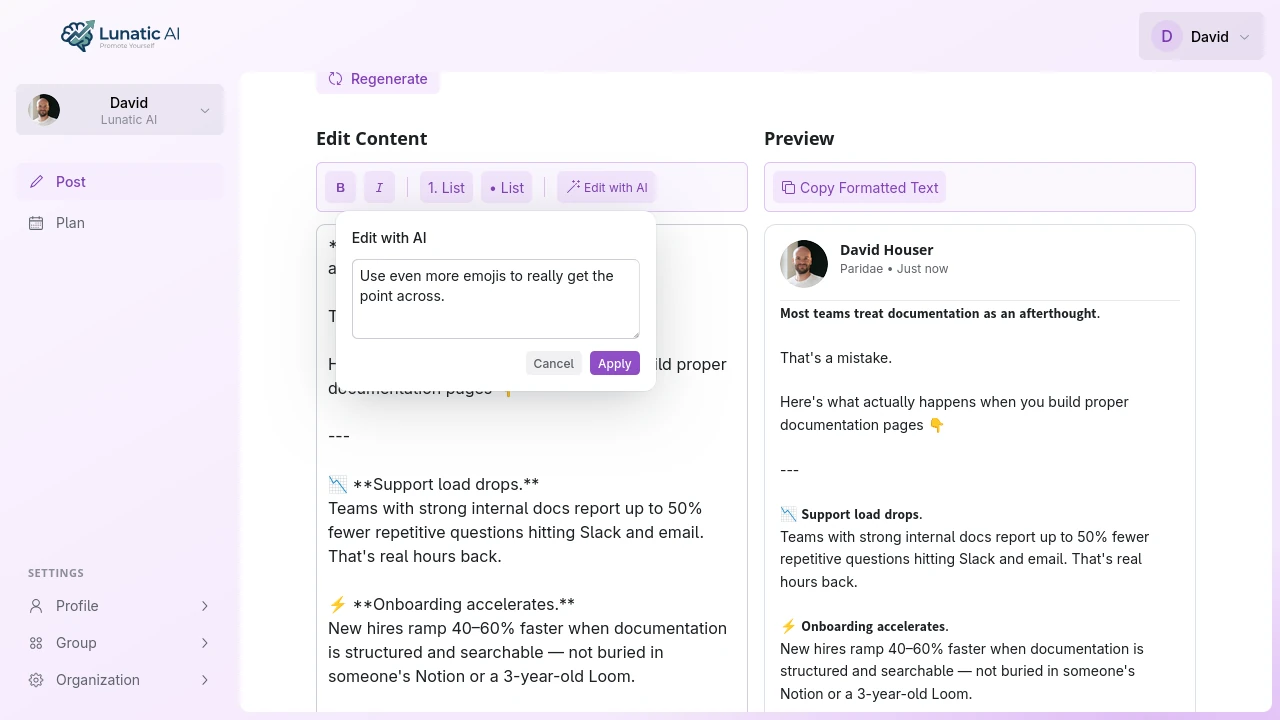 AI editing popover with instruction input field
Type your instruction
Be specific about what you want changed. A few words is enough. Examples: "make this shorter", "add a stronger opening hook", "use bullet points for the key takeaways."
Click Apply
The AI rewrites the post based on your prompt and your voice profile. The editor shows a spinner overlay while the rewrite is in progress.
What makes a good editing prompt?
Concrete instructions produce better results than vague ones. Here are patterns that work well:
- Tone: "Make this more conversational" or "shift to a more direct, professional tone"
- Length: "Cut this to under 150 words" or "expand the second paragraph with an example"
- Structure: "Add bullet points for the takeaways" or "start with a question hook"
- Focus: "Emphasize the business impact more" or "remove the personal anecdote"
- Style: "Stop using the word 'leverage'" or "shorter sentences throughout"
You can combine multiple instructions in one prompt: "Make this shorter, start with a bold statement, and end with a clear call to action."
What happens during an AI edit?
The editor shows distinct visual feedback so you know an AI edit is in progress:
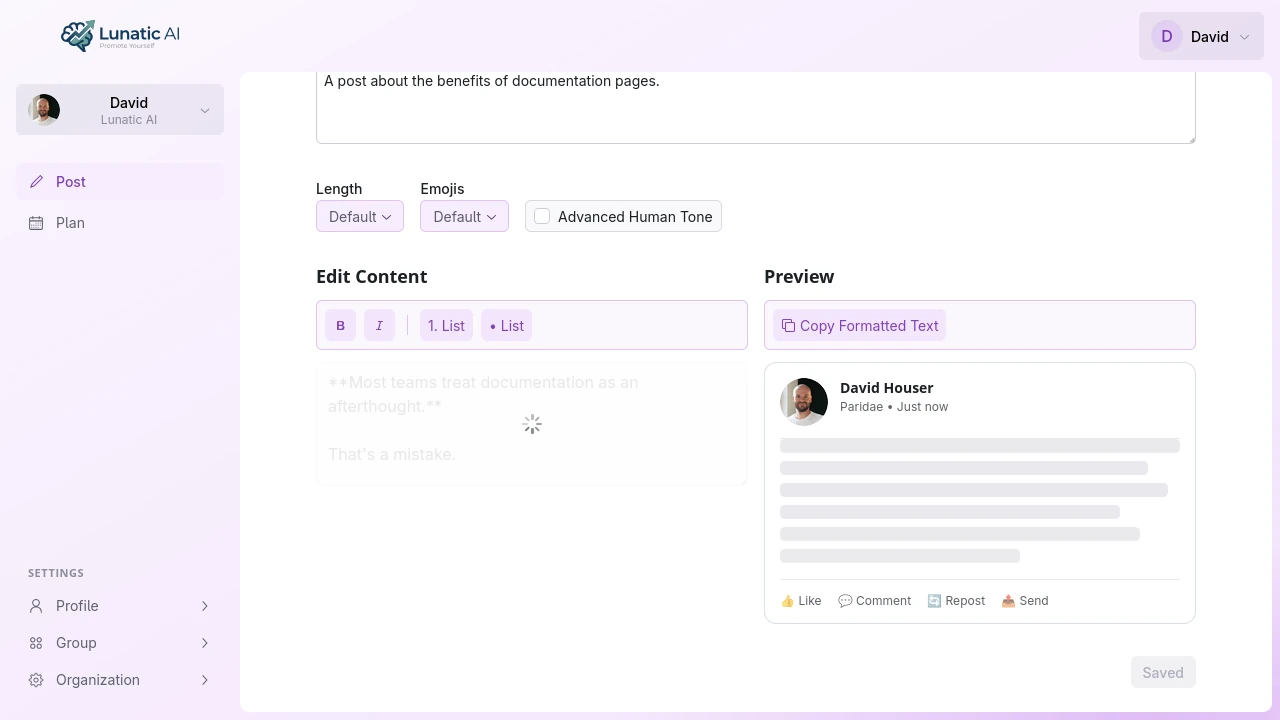 Post editor during AI rewrite showing spinner overlay
How does AI editing relate to version history?
Every AI edit creates a new version with the type "AI Edit." The exact prompt you used is stored alongside the version, so you can see what instruction produced each rewrite.
From the Version History tab, you can browse all previous versions — manual saves, AI edits, regenerations — and restore any of them. See Version History for the full details.
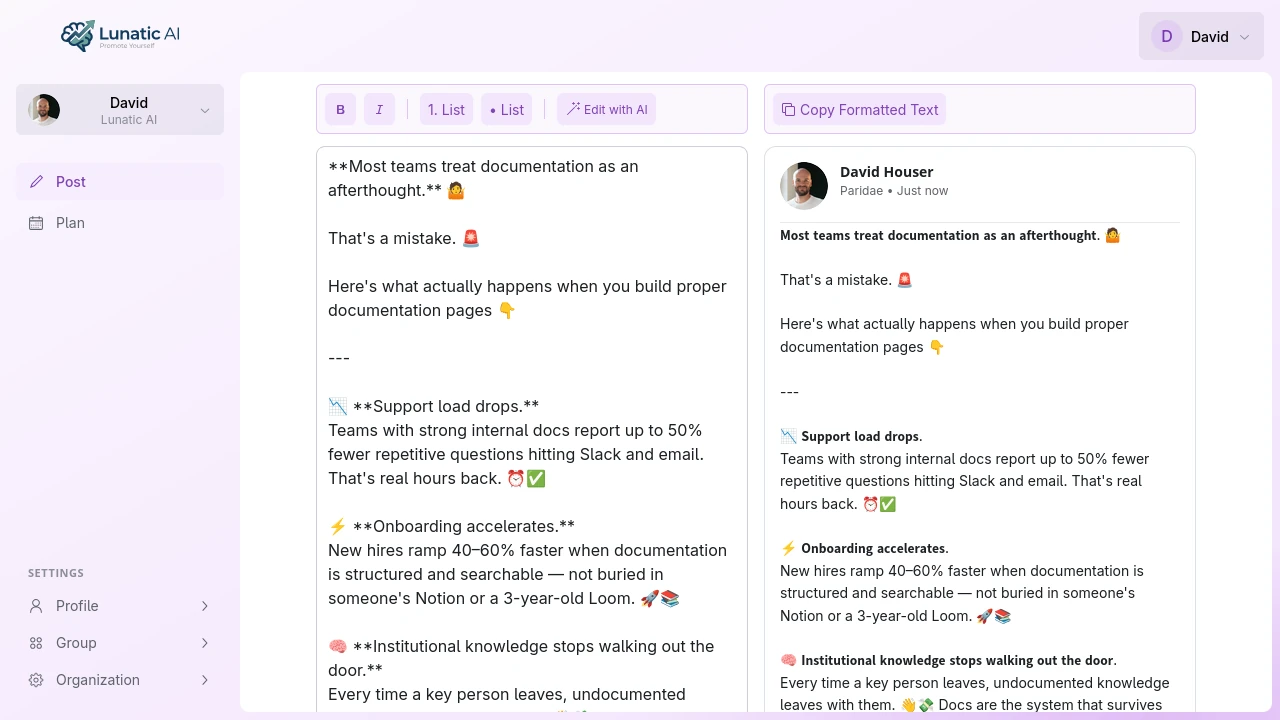 Post after AI edit with updated content in preview
What about style preference detection?
When the AI detects a reusable pattern in your editing instruction, it offers to save it as a style preference. After the edit completes, a dialog appears with the detected rule — something like "always open with a direct statement" or "avoid jargon."
You can accept it (optionally editing the text first), or dismiss it. Accepted preferences are sent to the AI for all future content generation, so your first drafts keep getting better. See Style Preferences for the full workflow.
AI editing vs regeneration
These are two different operations:
- AI editing rewrites the current content based on your prompt. The existing text is the starting point. Use this for refinements — adjusting tone, cutting length, restructuring paragraphs.
- Regeneration throws away the current content and starts fresh from the original idea, guiding question, and voice profile. Use this when you want a completely different take on the same topic.
Both create version history entries, so nothing is permanently lost regardless of which you choose.