

Style Preferences
Style preferences are writing rules that Lunatic AI learns from your editing behavior. When you use "Edit with AI" on a post, the system detects reusable patterns in your instructions and offers to save them. Accepted preferences apply to all future content — posts, plans, voice generation, and AI edits.
- Detected automatically when you edit posts with AI
- A dialog lets you accept (save) or dismiss each detected preference
- Saved preferences are sent to every AI generation endpoint
- You can also create, edit, and delete preferences manually from the Voice tab
- More preferences = better first drafts = fewer edits over time
How are style preferences detected?
The detection happens during the "Edit with AI" flow. Here's the sequence:
- You open a post and click Edit with AI. You type an instruction like "make this shorter and punchier" or "never use the word 'leverage'."
- The AI rewrites the post based on your instruction. At the same time, it checks whether your instruction contains a reusable style rule.
- If a rule is detected, a dialog appears after the edit completes: "New Style Preference" with the detected rule shown in an editable text field.
- You can Save to Voice Profile (stores it permanently) or Dismiss (ignores it). You can also edit the text before saving if the detection wasn't quite right.
Not every AI edit produces a style preference. The AI only surfaces rules that seem general enough to apply across posts. "Move the second paragraph up" is too specific. "Always open with a question" is reusable.
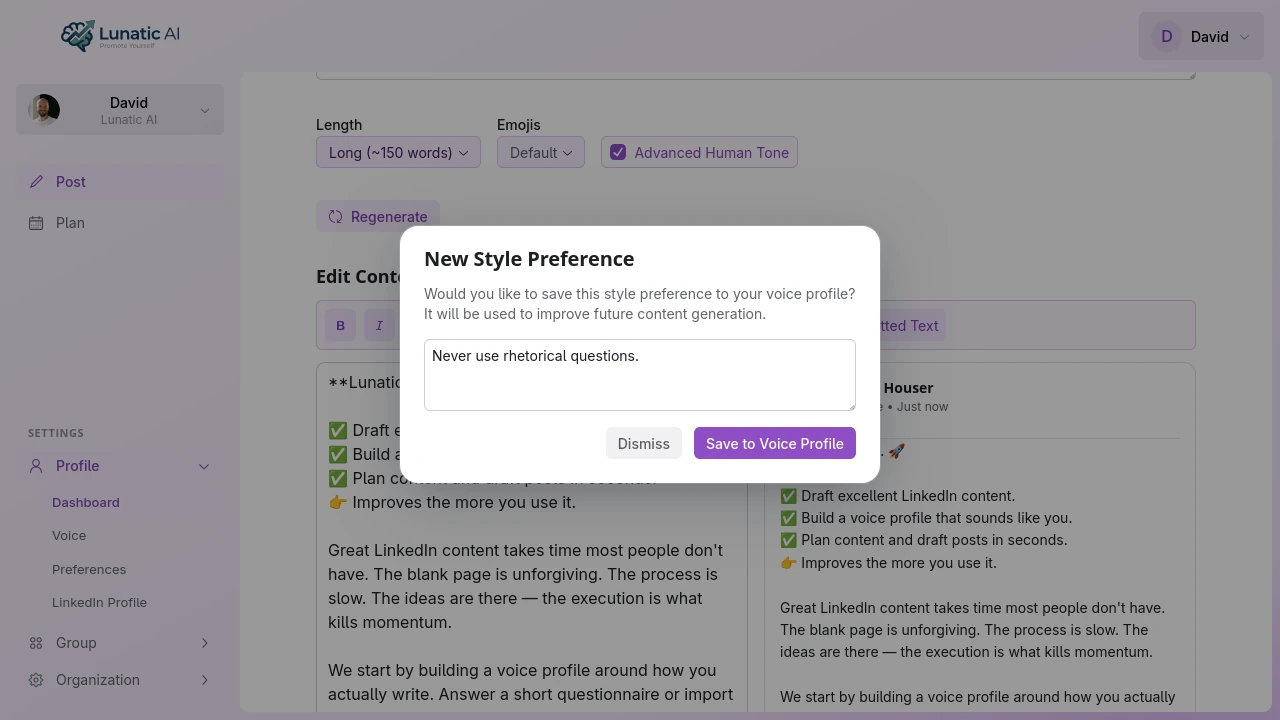 Style preference detected from AI edit with accept or dismiss options
How do style preferences improve my content?
Every saved preference is sent to the AI whenever it generates content for your profile. That includes four endpoints:
- Voice generation — your preferences shape the voice profile itself
- Content planning — ideas on the calendar reflect your style rules
- Post generation — first drafts respect your preferences from the start
- AI editing — rewrites stay consistent with your established rules
The effect compounds. With 3-4 saved preferences, the AI already produces noticeably different output. After a dozen, the first drafts start landing closer to what you'd actually post without changes.
Can I manage style preferences manually?
Yes. The Voice tab on your profile has a Style Preferences section with a full list of everything you've saved.
From there you can:
- Add new preferences — click + Add and type a rule directly. You don't have to wait for detection. If you know you want the AI to "avoid bullet points" or "always end with a call to action," just add it.
- Edit existing preferences — click any row in the table (or use the menu) to open it in an editable dialog.
- Delete preferences — from the actions menu on any row.
Manual preferences work identically to detected ones. The AI doesn't distinguish between them.
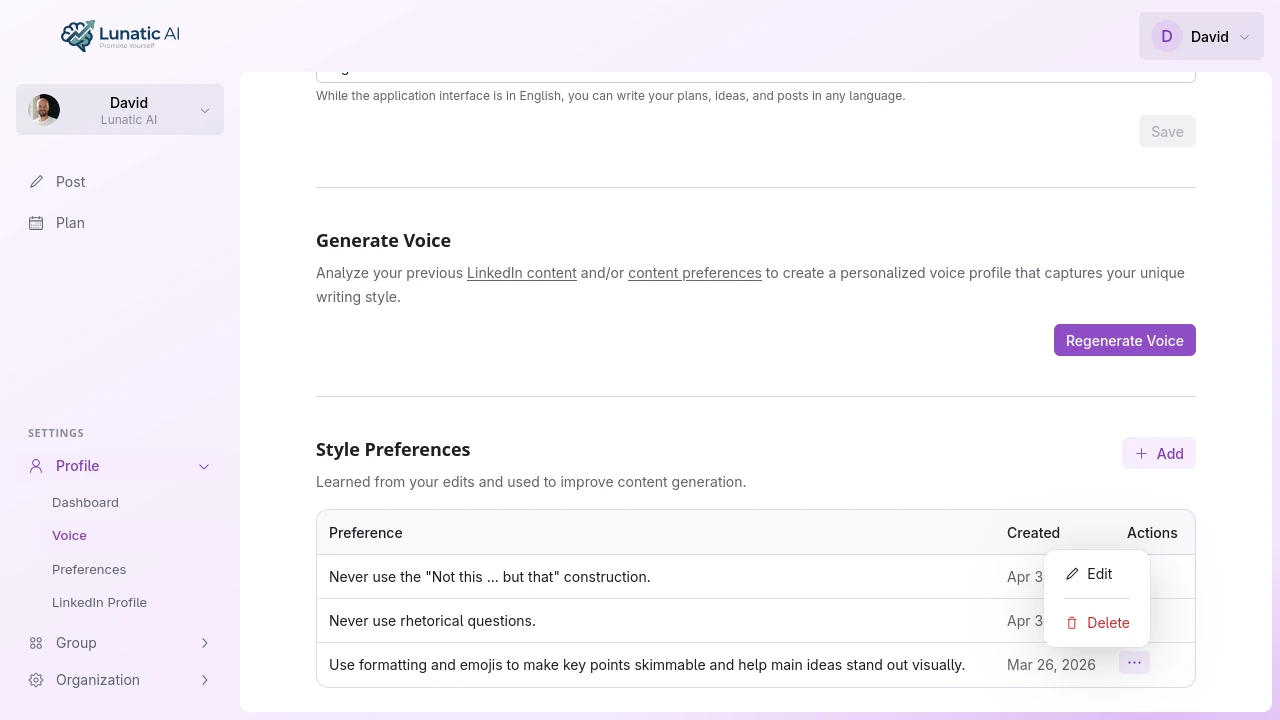 Style preferences list in the Voice tab
You can create style preferences manually if you know what rules you want the AI to follow, without waiting for detection from an edit.
What's the feedback loop?
Style preferences create a self-improving cycle:
- Edit — you refine an AI draft with "Edit with AI"
- Detect — the AI identifies a reusable pattern in your instruction
- Accept — you save the detected preference
- Apply — future drafts respect that preference automatically
- Repeat — fewer edits needed, but any new edit can surface new preferences
Early on, you'll edit more. That's expected. Each edit is a chance for the AI to learn something. After a few weeks of regular use, the first drafts get closer to what you want. The goal isn't zero edits — it's fewer repetitive ones.
Start training your AI voice
Create a free account and generate your first post. Edits teach the AI your style.
Start Now