

Version History
Every post in Lunatic AI maintains a complete version history. Each generation, manual edit, AI rewrite, and restore creates a new version entry, giving you a full timeline of how a post evolved and the ability to go back to any previous state.
- Automatic versioning — no manual "snapshots" to remember
- Five version types: Initial, User Edit, AI Edit, Regenerate, Restored
- Visual branching timeline shows how versions relate to each other
- Click any version to view it without saving
- Restore any previous version with one click
How does the version timeline work?
The Version History tab in the post editor shows a visual branching timeline. The main line (the trunk) represents the progression of saves over time, newest at the top.
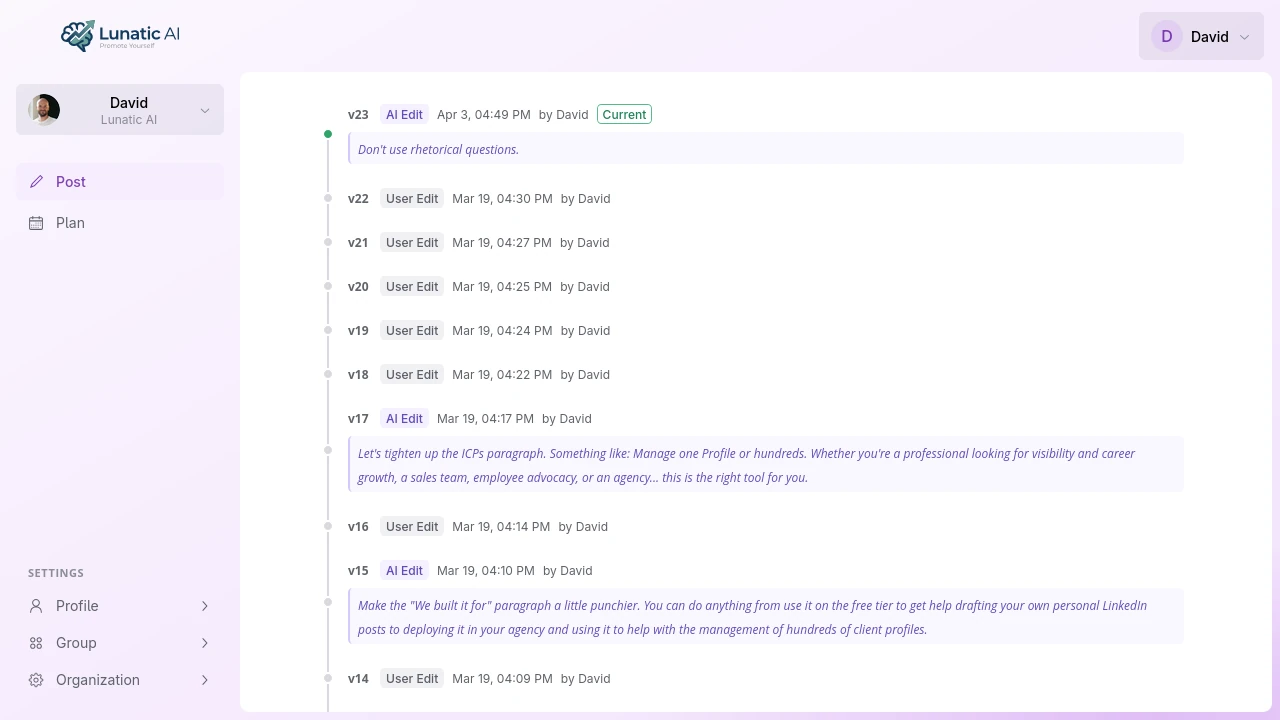 Post version history showing branching timeline with version types
Each entry in the timeline displays:
- Version number — v1, v2, v3, etc., starting from the oldest
- Type badge — color-coded label (Initial, User Edit, AI Edit, etc.)
- Author and timestamp — who created the version and when
- Source annotation — for restored or branched versions, a "from v2" label showing which version it was derived from
Can I view an old version without saving?
Yes. Click any version in the timeline to load its content into the editor. The editor switches to the Edit Post tab and shows the old content. An amber banner appears at the top: "Viewing v3" (or whichever version you selected).
Nothing is saved. The post data doesn't change. You're browsing, not committing. Click Back to current in the banner to return to the latest version.
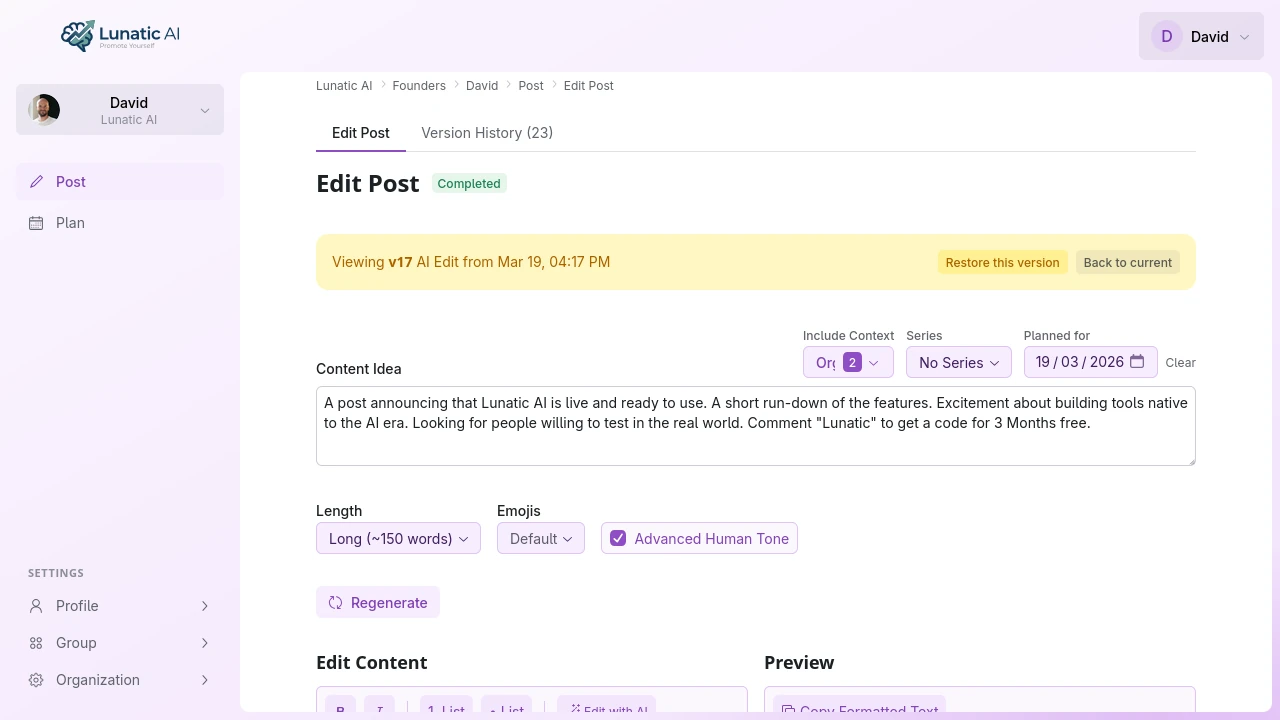 Viewing a previous version with restore and back buttons
How do I restore a previous version?
From the amber viewing banner, click Restore this version. This creates a new version (type: "Restored") with the old version's content. The original version stays in the timeline — nothing is overwritten or deleted.
One important detail: "Restore" saves the viewed version's original data. If you made edits in the editor while viewing an old version, those edits are discarded by the restore action. The restore always uses the clean version data, not the current editor state.
What's the difference between Restore and Save Changes?
Two different buttons, two different behaviors:
- Restore this version (in the amber banner) — saves the viewed version's original content as-is. Ignores any edits you've made in the editor. Creates a "Restored" version entry.
- Save Changes (at the bottom of the editor) — saves whatever is currently in the editor, including any modifications you've made while viewing an old version. Creates a "User Edit" version entry.
So if you view an old version, make changes to it, and want to keep those changes: use Save Changes. If you want the old version exactly as it was: use Restore.
Voice profiles also have version history with the same timeline interface. See Voice Profile for details on voice versioning.
Never lose a draft again
Every edit is tracked automatically. Start generating posts with built-in version history.
Start Now