
LinkedIn Text Formatting
LinkedIn supports bold, italic, and bullet point formatting through Unicode character substitution — not Markdown or HTML. The platform has no native rich text editor for posts. Instead, formatting relies on special Unicode characters that visually appear as bold or italic text but are technically different code points from standard letters.
- Bold text uses Unicode "Mathematical Sans-Serif Bold" characters (𝗟𝗶𝗸𝗲 𝘁𝗵𝗶𝘀)
- Italic text uses Unicode "Mathematical Sans-Serif Italic" characters
- Bullet points use the • character (U+2022), numbered lists use 1. 2. 3.
- Line breaks are preserved exactly as entered — whitespace is your strongest formatting tool
- LinkedIn does not support Markdown, HTML, underline, or colored text
- Screen readers handle Unicode formatting inconsistently — don't rely on it for essential meaning
How do you bold text on LinkedIn?
LinkedIn has no bold button. There's no formatting menu, no keyboard shortcut, no Markdown rendering. Bold text on LinkedIn is achieved by replacing standard characters with their Unicode "Mathematical Sans-Serif Bold" equivalents. The letter "A" becomes "𝗔", "b" becomes "𝗯", and so on through the alphabet.
These are distinct Unicode code points originally designed for mathematical notation. When pasted into a LinkedIn post, they render as bold to anyone reading the feed.
You'll need a formatting tool to make the conversion. Doing it manually means looking up individual Unicode characters — not practical for regular posting. Lunatic AI's post editor includes a formatting toolbar, and the free LinkedIn Post Formatter handles conversion without an account.
Best practices for bold on LinkedIn:
- Bold key phrases, names, or section headers — not entire paragraphs
- Limit bold to 2–3 phrases per post. When everything is emphasized, nothing is.
- According to a 2024 Social Insider study of over 1 million LinkedIn posts, posts with strategic formatting (bold headers, bullet lists) saw up to 40% higher engagement than plain text posts of similar length
- Don't use bold to convey information that isn't also clear in plain text (see accessibility section below)
How do you italicize text on LinkedIn?
Same mechanism, different character set. Standard characters are swapped for Unicode "Mathematical Sans-Serif Italic" equivalents. The rendering looks italic in the feed.
Italic works well for:
- Emphasis on a single word or short phrase
- Book titles, article titles, or publication names
- Foreign words or technical terms on first use
- Rhetorical questions or internal thoughts within a story
Like bold, italic has the most impact when used sparingly. A post where every other sentence is italicized reads as cluttered, not emphatic.
How do you add bullet points to a LinkedIn post?
Use the • character (bullet, U+2022) followed by a space at the start of each line. Most keyboards don't have a dedicated bullet key — you'll need a formatting tool or the character's alt code.
For numbered lists, type "1." followed by a space, with a line break between each item. Sub-items with indentation technically work but render inconsistently between LinkedIn's desktop and mobile apps, so stick to flat lists.
Formatting tips for lists:
- Keep lists to 3–7 items. Longer lists lose the scanning advantage they're meant to provide.
- Start each bullet with a verb or key term for quick scanning ("Built the onboarding flow" rather than "The onboarding flow was built by me")
- Match bullet length roughly — one bullet that's three lines long next to four that are one line looks unbalanced
- Add a blank line before and after the list for breathing room
According to Hootsuite's 2025 Social Media Trends report, posts that use structured formatting — bullet points, numbered lists, clear section breaks — perform measurably better on LinkedIn than wall-of-text posts, particularly on mobile where screen real estate is limited.
How do line breaks work on LinkedIn?
Line breaks are your most powerful formatting tool on LinkedIn. More powerful than bold, more impactful than bullets. Strategic whitespace determines whether someone reads your post or keeps scrolling.
Key details:
- Single line break (press Enter once) creates tight spacing between lines
- Double line break (press Enter twice, leaving a blank line) creates paragraph-level spacing
- The first ~210 characters appear before the "See more" fold on desktop. On mobile, it's similar. Your hook needs to land before the fold.
- Leading whitespace (spaces at the start of a line) is preserved but can look odd on mobile
- LinkedIn trims excessive consecutive blank lines (more than 2–3), but 1–2 blank lines between sections are reliable
A common technique for high-engagement posts: short lines, generous whitespace, each sentence on its own line. It trades information density for readability. Whether this works for your audience depends on the type of content you post — analytical deep dives often read better with traditional paragraph structure.
What formatting does LinkedIn NOT support?
LinkedIn posts are fundamentally plain text. Here's what doesn't work:
- Markdown — no rendering of
**bold**,*italic*, or any Markdown syntax - HTML — tags are stripped or displayed as raw text
- Native underline — no Unicode workaround exists for underline
- Strikethrough — Unicode strikethrough characters (like s̶t̶r̶i̶k̶e̶) exist but render inconsistently across devices and operating systems
- Headings or font sizes — all text renders at the same size
- Colored text — not possible in standard posts
- Hyperlinked text — you can't make "click here" link to a URL. Links appear as full URLs or auto-generated link previews. LinkedIn converts raw URLs to clickable links automatically.
- Tables — no table support in posts. Use a screenshot or link to an external document.
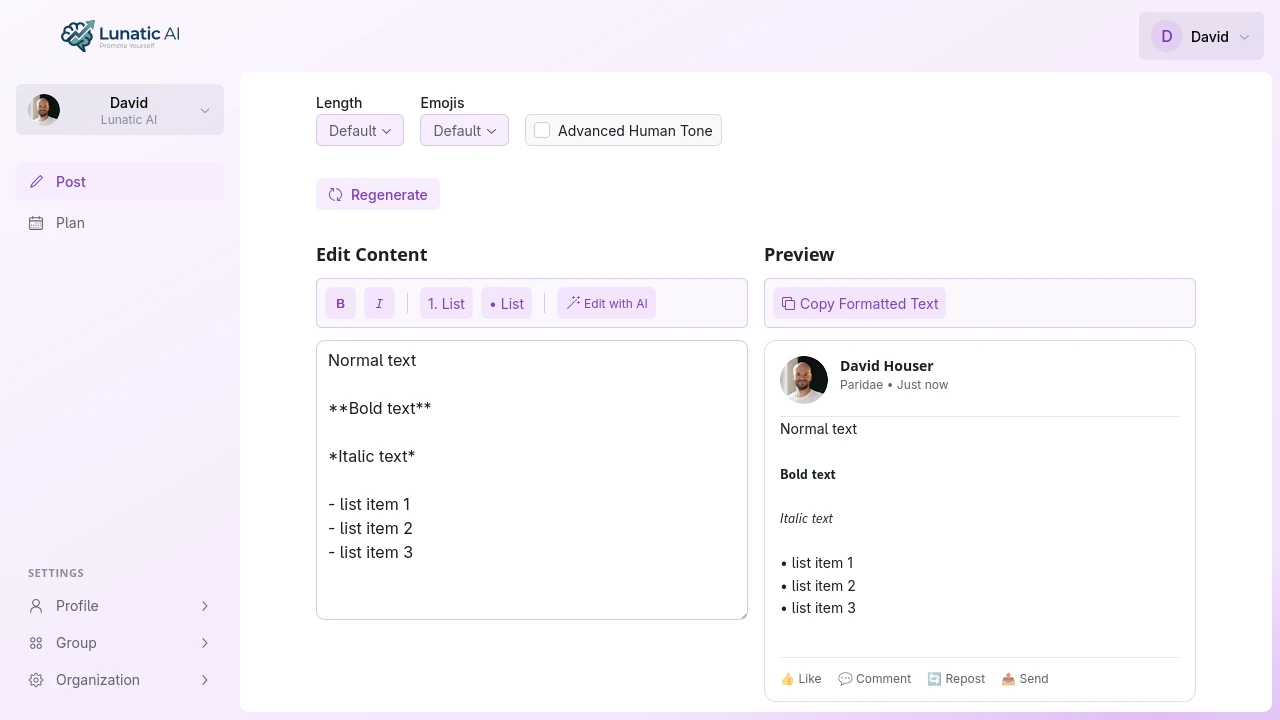 LinkedIn post with bold text, bullet points, and italic formatting
Bold headers, bullet points, and italic emphasis in a LinkedIn post
Accessibility considerations for Unicode formatting
Unicode bold and italic characters are not standard text. Screen readers — software used by visually impaired users to navigate digital content — handle them inconsistently. Some screen readers skip Unicode-formatted characters entirely. Others read each character individually (spelling out words letter by letter). Others announce the full Unicode name: "mathematical sans-serif bold capital A."
The World Wide Web Consortium (W3C) advises against using Unicode characters for text styling in web content. Their Web Content Accessibility Guidelines (WCAG) recommend using semantic HTML for emphasis — but LinkedIn posts don't support HTML, which creates an inherent tension between visual formatting and accessibility.
Practical guidelines:
- Use Unicode formatting to enhance visual presentation, not to convey essential meaning
- Any information communicated through bold or italic text should also be clear from the surrounding plain text
- For critical announcements or inclusive communications, consider using plain text with whitespace and structure (line breaks, bullets) instead of bold and italic
- Keep in mind that roughly 2.2 billion people worldwide live with some form of vision impairment, according to the World Health Organization
Unicode bold and italic characters are not reliably interpreted by assistive technology. Some screen readers skip them, others spell them out character by character. Never rely on Unicode formatting alone to convey meaning that isn't clear from the surrounding plain text.
Formatting tools for LinkedIn
You have a few options for formatting LinkedIn posts:
Lunatic AI's post editor includes a formatting toolbar with bold, italic, and list buttons. Select text, click the button, and the characters convert to their Unicode equivalents. A live LinkedIn preview shows exactly how the formatted post will look. For the full product walkthrough, see LinkedIn Post Formatting.
The free LinkedIn Post Formatter at lunatic-ai.com/tools/linkedin-post-formatter handles bold, italic, and bullet formatting without an account or signup. Paste your text, format it, copy the result.
Manual Unicode entry is technically possible through character maps or alt codes, but it's impractical for regular posting. Formatting tools exist specifically because manually substituting Unicode characters is tedious and error-prone.
Frequently Asked Questions
Or start creating AI-generated posts
Voice-matched LinkedIn content with built-in formatting. Free plan available.
Start Creating Posts