

Managing Organizations
An organization is the top-level entity in Lunatic AI. It owns everything — groups, profiles, voices, posts, content series, and billing. When you sign up, one is created for you automatically. You can create additional organizations from the Settings page if you need separate workspaces for different businesses, clients, or projects.
- Top-level entity that owns all groups, profiles, posts, and billing
- Created automatically on signup, named after you
- Additional organizations can be created from Settings
- Configurable name and description (description can feed into AI content generation)
- Soft-delete with 30-day recovery window before permanent deletion
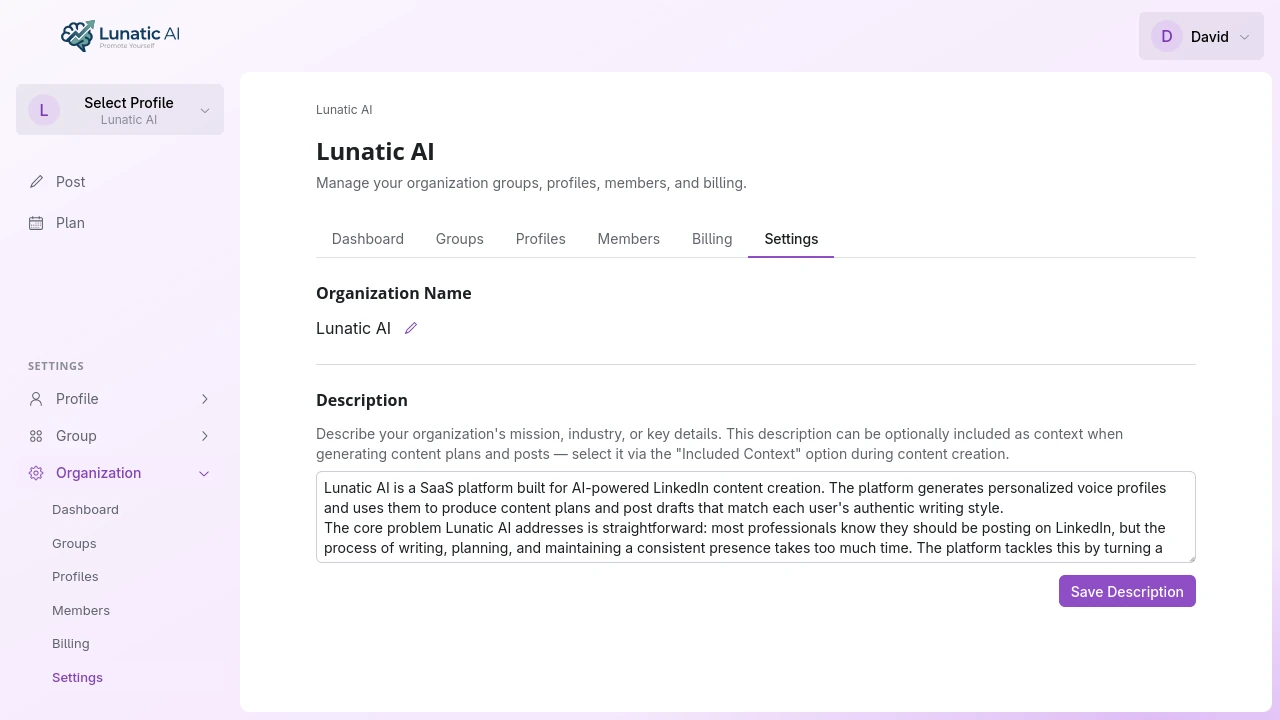 Organization settings showing name and description editing
How are organizations created?
Your first organization is created the moment you sign up. It's named "Your Name's Organization" and comes with a default group and a default profile, so you can start creating content immediately.
Need a second workspace? Go to Settings → Organizations and click Create Organization. Each new organization gets its own default group and profile, its own billing settings, and its own member list. There's no limit to how many organizations you can create.
What can I configure?
From the organization's Settings tab, you can edit two things:
- Name — click the organization name to edit it inline. The URL slug updates automatically to match.
- Description — a text field that describes what this organization does. When you enable "Included Context" during content generation, the AI uses this description to inform the posts it writes. This (as well as the group description) is where you can give Lunatic AI context about your Company, Brand, Product, etc.
Both fields save instantly — no submit button needed for the name, and the description saves when you click outside the field.
How do I switch between organizations?
The context switcher in the sidebar shows all your organizations. Click one to switch to it.
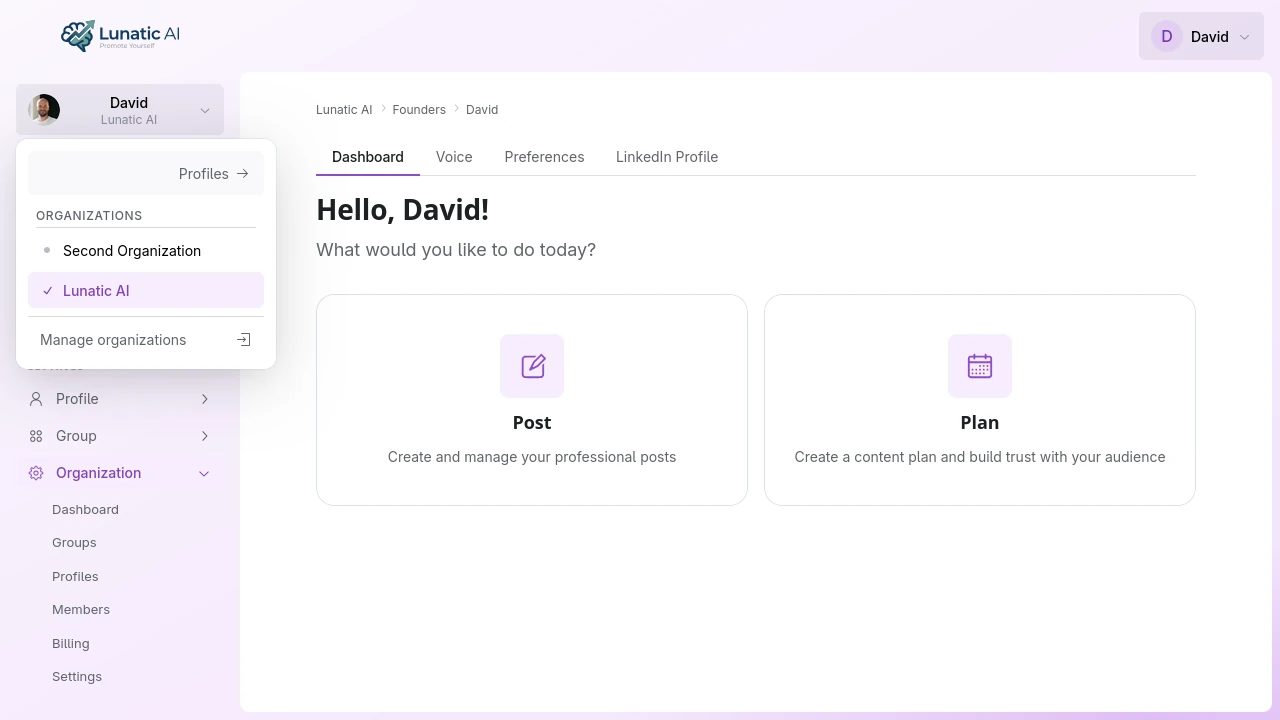 Organization switcher showing multiple organizations
The context switcher also shows groups and profiles within each organization, so you can jump directly to a specific profile without navigating through multiple pages.
How do I delete an organization?
Deletion is a two-step process designed to prevent accidents.
Step 1: Soft-delete. From Settings → Organizations, open the menu next to the organization and select Delete. If the organization has an active subscription, you'll need to cancel it first (or it must already be set to cancel at period end). The organization enters a 30-day grace period. During this time, the owner can restore it from the same Settings page.
Step 2: Permanent deletion. After 30 days, the organization is automatically purged. If you want to skip the wait, the owner can permanently delete it from Settings before the 30 days are up.
Non-owners can't see or access a soft-deleted organization. Only the owner retains visibility during the grace period.
Deleting an organization removes ALL its data — groups, profiles, voices, posts, and content series. Make sure you've exported anything you need before permanent deletion.
Can I transfer ownership?
Yes. The owner can transfer ownership to another member from the organization's Members tab. The original owner becomes an admin after the transfer.
One important constraint: you can't delete your user account while you're the sole owner of any organization. You'll need to either transfer ownership to someone else or delete the organization first. The app will tell you which organizations are blocking account deletion if this comes up.
See what's included on each plan
Organizations are free to create. Profile limits and content planning depend on your tier.
See Plans