

Post Creation
Lunatic AI generates LinkedIn posts from your ideas using your personal voice profile. Write a brief idea and the AI drafts a complete post that matches how you actually write. There are two ways to create posts: from the content calendar or from a standalone page.
- Write an idea → the AI generates a full post using your voice profile
- Two creation paths: from the content calendar or the standalone Posts page
- Output matches your writing style, sentence patterns, and word choices
- Formatting toolbar and live LinkedIn preview in the editor
- Free plan includes post creation — no calendar required
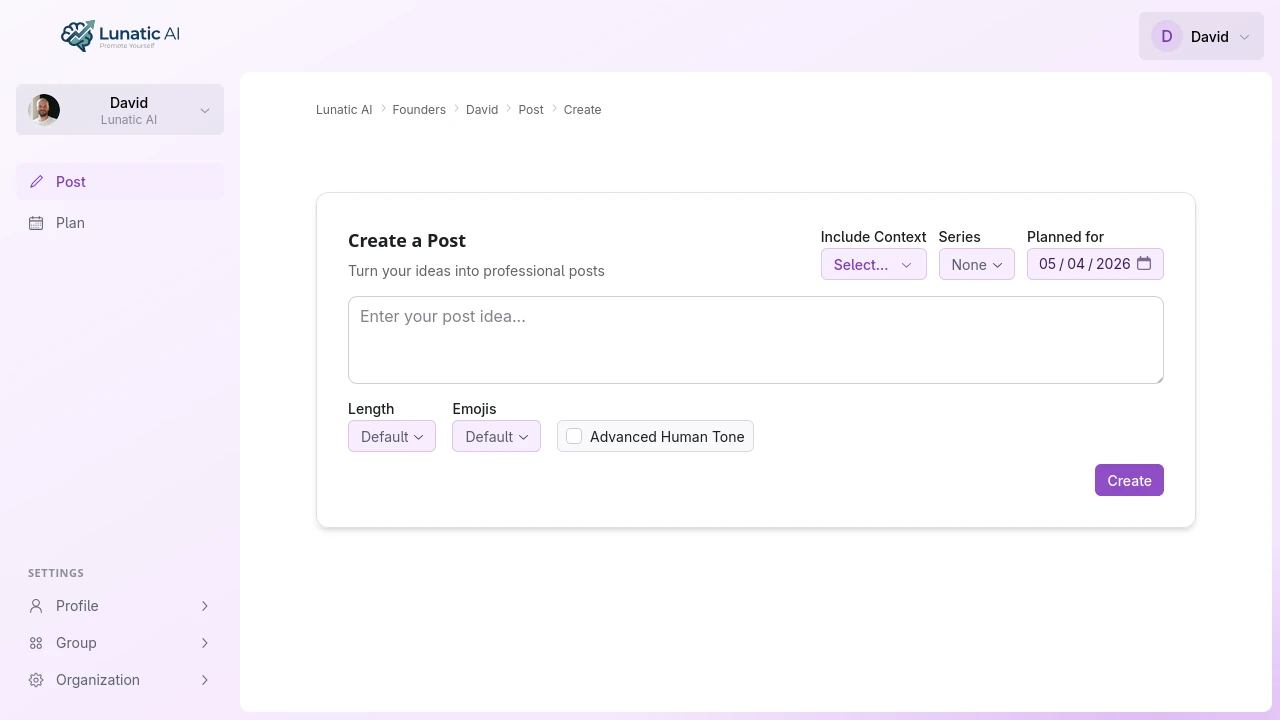 Create post page with idea input and generation options
How do I create a post?
There are two paths, depending on whether you use the content calendar.
From the calendar — open an idea that was generated during content planning. The idea text and guiding question are already filled in. Answer the question (even a sentence helps), optionally adjust enrichment settings, and click Generate Post. The AI uses your idea, your answer, and your voice profile to produce a draft.
From scratch — go to Posts → Create. Write an idea in the text area, optionally set enrichment options like length preference or emoji usage, and click Generate Post. No calendar, no planning step required. This works on every plan, including Free.
Both paths produce the same output: a voice-matched LinkedIn post ready for editing.
What happens during generation?
When you click Generate, the AI combines your voice profile with the idea text, the guiding question and answer (if present), and any enrichment options you've set. The post status changes to "pending" while the AI works.
When the draft is ready, it appears in the post editor with a live LinkedIn preview.
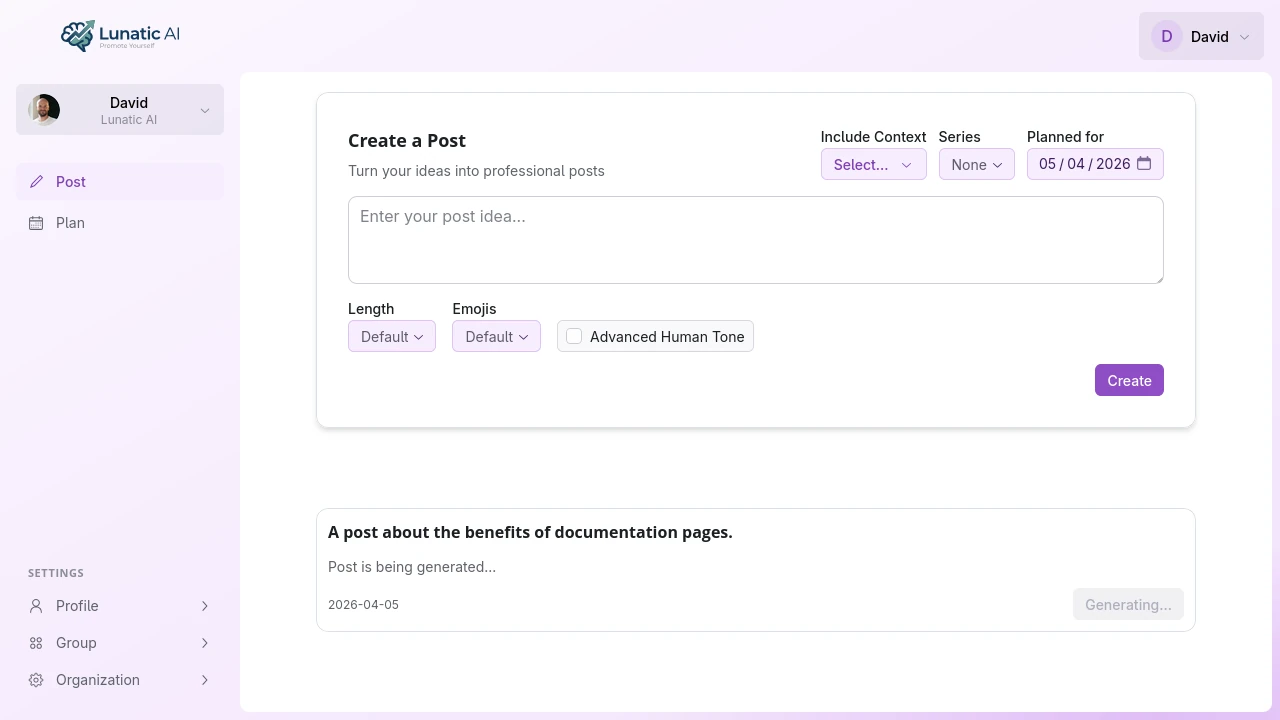 Post generation in progress with loading indicator
How do I edit a generated post?
The post editor gives you three tools:
- Text area with formatting toolbar — select text and click bold, italic, or list buttons. The toolbar uses Unicode formatting that LinkedIn actually supports (see LinkedIn Post Formatting).
- LinkedIn preview — the right panel shows exactly how your post will render on LinkedIn, including formatting, line breaks, and the "See more" fold. Copy directly from the preview to preserve formatting when pasting into LinkedIn.
- Save — clicking Save Changes stores your edits and creates a version history entry, so you can always get back to earlier drafts.
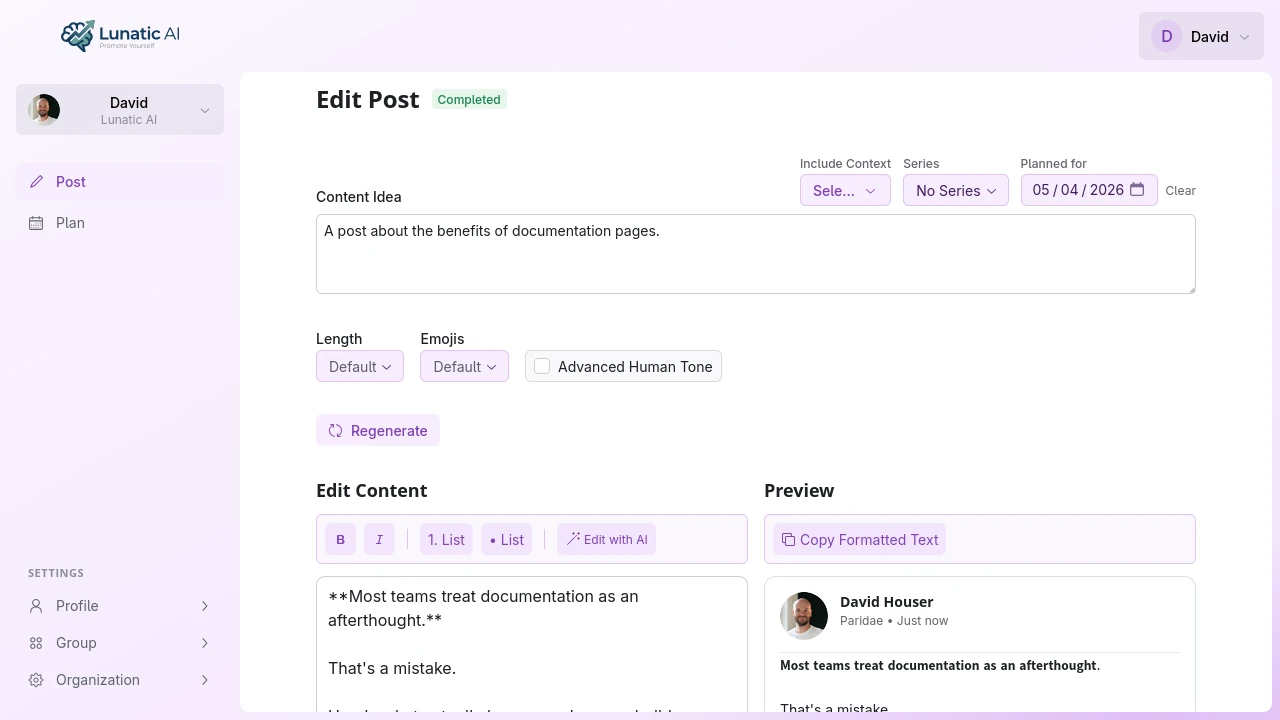 Post editor showing generated content with LinkedIn preview
What if generation fails?
Should a post generation fail for any reason, a red callout appears in the editor with a Retry Generation button. Clicking it re-triggers the process from the same idea and settings. No data is lost.
You don't need the content calendar to create posts. The standalone create page works on all plans, including Free.
Create your first post in under 10 minutes
No credit card required. The free plan doesn't expire.
Start Now