

Sources
Sources is a built-in reader for discovering timely, relevant topics to post about. Subscribe to the news sites, blogs, and publications you follow, and Sources surfaces fresh items worth weighing in on. When something fits your audience, add your own take and turn it into a voice-matched LinkedIn draft — with the original source cited on your post.
- Subscribe to the news sites, blogs, and publications you follow — or add your own RSS feeds
- Discover timely, relevant items worth weighing in on, then save the best for later
- Get AI-recommended items picked for your audience on your profile home
- Add your own take on a topic and turn it into a voice-matched post — with the source cited
- Available on every plan; Pro and above unlock the full catalog and custom feeds
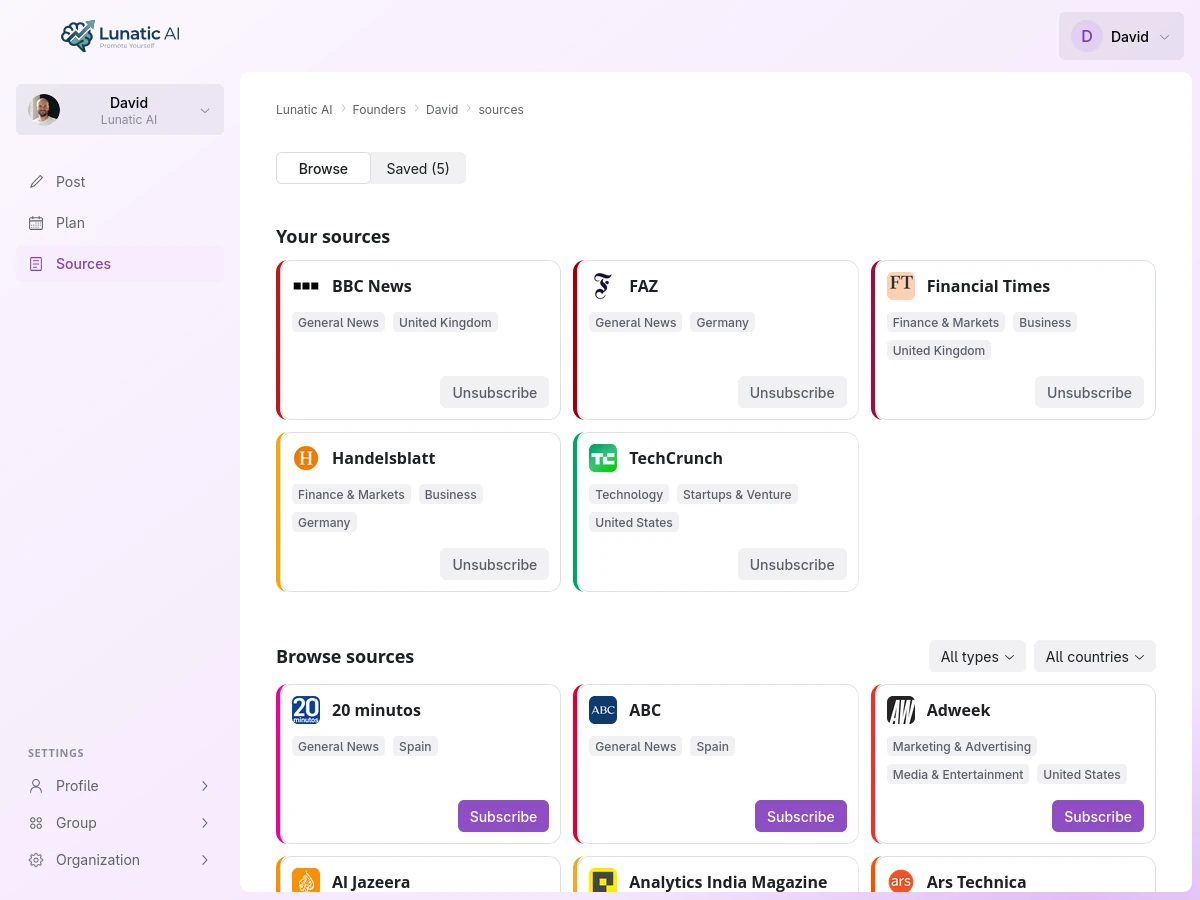 Sources feed with saved items and one-click post generation
What is Sources?
Sources is a per-profile reader you open from the Sources item in the profile sidebar. You choose the feeds — the news sites, blogs, and publications you already read — and Sources surfaces their latest items, so you always have timely, relevant inspiration to post about instead of staring at a blank page. It's a place to spot topics worth your take, not a feed of what your audience is reading. Each profile keeps its own subscriptions, saved items, and recommendations.
How do I subscribe to feeds?
Open Sources and use the Browse view to explore the curated catalog — news sites, industry blogs, and publications organized by type and country. Filter by the type or region you want to post about, then subscribe to any feed to add its items to your reader. Subscribed feeds show their most recent items, newest first.
Can I add my own feeds?
Yes. On Pro and above you can add any public RSS or Atom feed by URL. Lunatic AI validates the feed, then adds it as a private custom source that only your profile can see. Custom feeds behave exactly like catalog feeds — read them, save items, and generate posts from them.
How do I save items for later?
Every item has a bookmark toggle. Pin the ones you want to keep and they move to the Saved view, where they stay available even if they drop out of the live feed. Saving is available on every plan. Use it to build a backlog of ideas you can turn into posts whenever you're ready.
What are recommended items?
Your profile home surfaces up to six recommended items — stories picked from your subscribed feeds based on your voice profile and audience. They refresh automatically and give you a running shortlist of what's most worth posting about. Recommendations are available on every plan (you just need at least one subscribed feed).
How do I turn a source into a post?
Click Generate a Post on any item — in the feed, a saved card, or a recommendation. The item comes along as context (its title, snippet, and link), but the post is your take: add your own thoughts on the topic in the post composer, and Lunatic AI drafts a post in your voice built around your perspective and grounded in the source. The source stays cited on the post, so you can keep it, swap it, or remove it before you publish.
Sources is available on every plan. The Free plan includes a curated selection of feeds. Pro and above unlock the full catalog plus unlimited custom RSS feeds. Saved items and recommendations are available on all plans.
Turn today's headlines into your next post
Subscribe to the feeds you follow, add your take, and generate a voice-matched draft.
Start Now